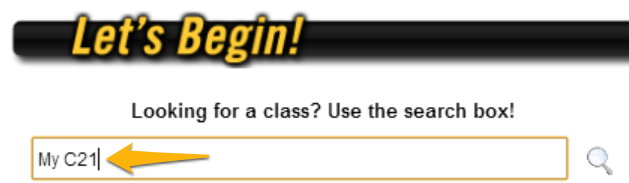
Increase your online reach with your free MyC21 Site

Did You Know... 90% of people used the internet in their home search in 2012?


You probably already have your own website, but did you know that you also have a website through CENTURY 21?


Your FREE My C21 Site takes just moments to customize and generally ranks first page in Google Searches. To get started, just follow these directions:

1. Log into 21Online and click on My C21 Site next to your profile photo:

2. Double check your contact information. Need changes made to your CREST EDG Information? Contact Human Resources at hr@century21award.com.

3. Follow the prompts in the site wizard. Click the Save and Continue button to move on:


4. When you are finished, check out your final results!


Need more assistance? Get the full, self-paced tutorial in CLS!
  1. Log into 21Online and navigate to CLS in the Tool Library:
  2. Search for My C21, then click on the Self-Paced tutorial:

  3. Click Launch to begin the training:

You can also check out the Full User Guide or the FAQ.

Weekly Tech Tip: Use Facebook Lists

Facebook is an excellent way to stay connected with friends, family and clients, but as your Friend count grows, you may be facing a lot of information from a lot of different people. Drill down to what you need most by creating Facebook Lists.

Step 1: Create a new list.
After logging into Facebook, start by going to the profile page of someone you would like to add to a list. Click on the Friends button, then select "Add to list..."

Scroll down and select "+New List..."

Type the name of your list and press Enter to save.
*Note: According to Facebook, these lists are not public and notice will not be sent out that you added someone to a list. However, just in case this changes in the future, be mindful of what you're naming your lists!

Step 2: Mass edit your list.
You could go to each individual person and add them to your new list following the steps above (selecting the list name instead of creating a new list), however the easiest way to add additional people to your new list is by going to your Lists Homepage (https://www.facebook.com/bookmarks/lists)

Click on the name of the list you just created:
You can also create lists from this page.


Then click Manage List > Edit List in the upper right hand corner:


Then click On List List > Friends to see your whole friends list:


Simply click on the friends you would like to add to this particular list. A check (like Albert Bui) means they're on the list; no check (like Allison Brekke) means they are not on the list. Click finish when you are done.


You can edit your list as often as you like.

Step 3: View your list in the Newsfeed.
To make your list easily accessible, locate it in the left sidebar under Friends - you may have to scroll down a bit. Click on the Edit Pencil and select "Add to Favorites":


You will now see the list under Favorites in the left sidebar. Simply click on it to see updates only from the people you've added to your list:


Weekly Tech Tip: Daily Agenda Delivery


If you're the type of person who likes to know what the day has in store for them, and you're also the type of person who checks their email first thing in the morning, this week's tip will be a real treat. Set up Agenda Delivery in your Google Calendar and receive a daily email around 5AM with the contents of your calendar.

Step 1: Click the drop-down arrow next to My Calendars and select Settings.

Step 2: Click on Notifications for the calendars that you would like to receive daily emails for. In my case, I keep separate calendars based on the activity type.

Step 3: Check the box for Daily Agenda and click Save. Repeat for as many calendars as you want in your agenda.

That's all there is to it! From now on, your agenda will be delivered to your inbox first thing in the morning to inform you about your day:


Weekly Tech Tip: Learn Helpful Features

Chances are, the computer or device you are using has a series of helpful features that you aren't aware of. Commit to picking up a new trick once a week and you'll be more efficient in no time!

WINDOWS 7: Snap

Capitalize on your screen size by using the Snap feature, which automatically fits a window to half of your screen. This is especially useful when comparing documents, moving files, or working in multiple windows.

TO DO: Drag the title bar of a window to the left or right side of the screen until an outline of the expanded window appears, then release the mouse. Repeat on the opposite side of the screen with another window to arrange them side by side.

TIP: Dragging a window to the top of the screen will maximize it. To Snap a window using your keyboard, hit the Windows logo key and the left or right arrow.


iOS/Windows: Cycle Through Open Applications

Both Windows and iOS will let you quickly cycle through your open applications and windows.

TO DO: Hit the ALT+TAB keys (Windows) or CMD+TAB keys (iOS) to bring up the Cycle Window (Windows version pictured above). Keep hitting these keys or hold them and use the arrow keys to view your open windows, and release to bring your selected window to the forefront.


iPhone/iPad/Android: Drag/Drop to Create Folders
You can group apps on your iDevice or Android to declutter and streamline your experience.

TO DO: Press and hold an app until it is selected. On iDevices, the icons will start to wiggle and on Android it will "lift". Drag the app icon on top of another app icon and release. On iDevices, you will need to hit the home key one final time so save your changes. You can also rename these folders.


Get more tips here:
Apple (iOS/iPhone/iPad): http://osxdaily.com/
Windowshttp://www.microsoft.com/athome/setup/windowstricks.aspx
Android: http://www.droid-life.com/category/tips/


Want more weekly tech tips? Click here!

Weekly Tech Tip: Adjust Your View

Chances are, you spend a good chunk of your time at a computer. To avoid back, neck and shoulder pain as well as eyestrain and other overuse injuries, take some time to make sure your desk is as ergonomic as possible. Your body will thank you!


Tips & Tricks:

  • The top of your monitor(s) should be at or just below eye level. Invest in a riser to put yours at the proper height. If you are using a laptop, you will also need to invest in a keyboard/mouse set as your keyboard will also be raised. Money-saving tip: A cabinet shelf makes a great, cheap alternative.
  • Make sure you're sitting pretty. Your chair should be comfortable, include lower back support and have arms to support your elbows and forearms.
  • Your forearms should be parallel to the floor, so make sure your chair is at the proper height.
  • Your feet should rest flat on the floor. If you are short like I am, a foot rest can make sitting much more comfortable.
It's also important to take breaks!
Check out these websites from Apple, Microsoft and OSHA for more tips, tricks and diagrams.


Want more weekly tech tips? Click here!

Weekly Tech Tip: Clean & Disinfect

You wash your car, and you wash your coffee mug, but how often to you give your tech space a once over?

Image via: ScottChan/FreeDigitalPhotos.net

Given that your keyboard is dirtier than a toilet and your cell phone can give you pink eye, take a few minutes this week to clean and disinfect your work space and technology.

What you need:

  • Disinfectant wipes or spray
  • Canned air
  • Microfiber cloths or disposable microfiber cloths
  • Consider a tech putty such as Cyber Clean, or a UV Sanitizing Wand
  • Hand sanitizer - keep this on your desk to sanitize your own hands throughout the day as necessary.
What to do:
  • Start by clearing your desk and cleaning it like any other surface. As you start putting your things back in their places (phone, stapler, etc.), give them each a onceover with the disinfectant.
  • Use the canned air to get the gunk out of your keyboard and any other items with crevices for crud. The tech putty will also work wonders here. Give your keyboard an mouse a wipe with the disinfectant as well. If it's possible, you'll get the deepest clean by removing components (such as the battery cover on your mouse) as you go.
  • Give your cell phone a wipe, too.
  • IMPORTANT NOTE: Never spray a cleaning product directly on an electronic device! Always spray it on a cleaning cloth first, then wipe the device. Also, never use an abrasive cleaner.


Want more weekly tech tips? Click here!

Weekly Tech Tip: Get a Tune Up

Last week, we made our inbox manageable; this week we'll be making a few little adjustments to speed up our equipment.

Image via David Dominici/FreeDigitalPhotos.net

1. Clear your browser's cache & cookies.
Your computer will save items (graphics, media, etc.) to make speed up your internet experience. The problem is that over time, these cached downloads can become pretty hefty and bog down your system. The good news is that emptying the cache is quick and easy; some browsers will even let you specify when the browser should empty the cache automatically! Get detailed instructions for your browser (Chrome, Firefox, Safari or Internet Explorer) at RefreshYourCache.com.

Windows users can also opt to use the Disk Cleanup Utility, which will remove temporary internet files, downloaded program files, temporary program files, empty the recycle bin and more. Hint: I just reclaimed a whopping 11.9 GB using this tool.

2. Remove any bugs.
Ideally, you already have virus and malware protection on your computer that runs automatically, but just in case... Take a few minutes to download one of these free programs and make sure you don't have any hidden bugs on your machine. (I personally use Malware Bytes.)


3. Change your startup programs.
Do you feel like it takes forever for your computer to turn on and get going? An overloaded list of startup programs may be to blame. Please be aware that you should only stop programs that you know you do not need; some startup programs are critical to the operation of the computer. Things that are safe to remove from startup include: iTunes, Spotify, real estate programs such as the key card updater, etc.

Stop unnecessary programs from automatically opening one of several ways:

  • Within the program itself: check the settings for the program. Look for a setting related to starting when Windows launches and disable it.
  • **Use the MSCONFIG tool: Click Start > Run and type in msconfig. Select the Startup tab and uncheck the applications that you don't want to run on your next startup.
  • **Install AutoRuns for Windows: This program is considered one of the more comprehensive startup managers available. Click here to download. 
*Note: these methods are recommended for more advanced users.

Want more weekly tech tips? Click here!

Weekly Tech Tip: Clear up your Inbox

Welcome to 2013! 


Start the year off on the right foot by clearing your inbox of emails you don't read, BEFORE they arrive, by making use of the Unsubscribe option!

Image via Stuart Miles/FreeDigitalPhotos.net


Emails you should unsubscribe from:
  • Emails that you receive on a regular basis and NEVER read
  • Vendors or services that you don't use (did you attend a conference or convention in the last year or two
  • Anything that you don't remember signing up or opting in for

HOW TO UNSUBSCRIBE:

Option 1: 
If you use Gmail or Yahoo, check out UnRoll.Me (+Chris Smith  from InmanNext wrote a great article on it). This service will scan your inbox and create a list of your subscriptions. You can then unsubscribe en masse. My favorite part is the RollUp feature, which automatically moves all of my subscriptions to a Label/Folder and out of my inbox, as well as sends me a daily digest of what I've received. This way, I don't necessarily have to unsubscribe, but it keeps my inbox clean.

Option 2:
Whatever email service you use (Gmail, Outlook, etc.), you can manually unsubscribe from emails as they come in. Simply find and click on the Unsubscribe link (this is usually at the bottom). Depending on the service, you may need to click a few more times to confirm.


Want more weekly tech tips? Click here!

Hot App Alert: Postagram

Postagram
Looking for a better, tangible way to share photos from your cell phone? Want to follow up on an in-person meeting a few days later with a unique touch point? Want to stay better connected with and surprise your friends, family and clients? If any of these apply to you, then I guarantee you will love this app!

Q/A Friday: Content Curation for Every Digital Lifestyle

Q: I know it's important to be in-the-know and share useful content with my friends and fans, but I just don't have the time to write my own stuff or spend hours searching for valuable articles. I also prefer [email/websites/social networks/using my mobile device]. Isn't there a better way?

A: Regardless of how you prefer to consume information, there's a method to fit your needs. A lot of the options are crossovers as well. For example, you may prefer email, but you probably also receive your email on your smart phone, where you likely also access your social networks. Keep in mind also that this list is by no means exhaustive!

If you prefer... EMAIL
About You: You live in your inbox. It's the one place where you know you can find anything, any time. If someone needs to get in touch with you, shooting you an email is the best way to do it.
Ways to Curate:
  • Newsletter Subscriptions. Find websites that create content you appreciate and find useful and subscribe to receive their regular newsletter. This can come in the form of a blog (like Houzz) or a news website (like NBC San Diego). 
  • RSS Email Notifications.  You can receive email updates from nearly any website that updates regularly using RSS, or Really Simple Syndication. These feeds can come directly to a special folder in your inbox in Outlook or delivered as an email via a third party service such as FeedMyInbox or Feed2Mail.

If you prefer... WEBSITES
About You: You prefer the convenience of a full keyboard, standard mouse and larger screen. You may not always be with your laptop or PC, but you favor its company to a mobile device.
Ways to Curate:
  • YouTube Subscriptions. Even if you don't create content on YouTube, having your own account has its perks. When you subscribe to a channel, not only can that content be emailed to you on a weekly basis but you are able to access it in the Subscriptions section of YouTube.
  • Blog Subscriptions. Similar to YouTube, you can subscribe to blogs when you have an account with either WordPress or Blogger. Simply log into your account and look for the "Blogs I Follow" section (WordPress) or "Reading List" section (Blogger).
  • RSS Feeds. RSS is a simple and expedient way to have content from various websites delivered to you in one centralized location. Google Reader and FeedReaderOnline are two good choices.
  • Personalized Landing Page. Unfortunately, iGoogle will soon be extinct however there are other sites waiting to take its place. NetVibes and Protopage are functional as both an iGoogle replacement or a first-time user landing page.
If you prefer... SOCIAL MEDIA
About You: You are a champion Facebooker, Tweeter, Pinner or Blogger. Email generally feels clunky, and you tend to keep in contact with people on these sites instead.
Ways to Curate:
  • Twitter Lists. If you've ever used Twitter, you know how quickly information can pile up. Make sense of the noise by separating who you follow into lists. Lists can be public or private and there's no limit to how many users you can place in a list, or what topics you create. Bonus: Hootsuite can help you digest your Twitter lists even more efficiently.
  • Facebook Lists & Interest Lists. Similar to Twitter lists, Facebook allows you to sift through the noise and focus on the accounts you want to hear. Friend lists are private and allow you to filter your friends into separate groups. Interest lists are more about topical content. 
  • Paper.li. Paper.li takes your Twitter lists and formats the content into a digital newspaper. Not only can this make it easier for you to digest information, but it also can share with the public via Twitter.
If you prefer... MOBILE DEVICES
About You: You are a person on the go and hate being tethered to a desk. You likely access all of the above options through apps on your phone or tablet.
Ways to Curate:
  • Preferred Source Apps. Many content creators have their own mobile phone apps that will even notify you when there is new content available. Mashable, TechCrunch, CNN and MSNBC are good places to start.
  • Aggregation Apps. If you'd rather streamline the number of apps you have running, an aggregator is your best option. Check out Zite, Flipboard, Pulse or Google Currents. Besides having an assortment of pre-selected sites available, these apps also allow you to customize your content by adding RSS feeds from your favorite sites or your social media connections.

So, how do you have content delivered to you? Share with us in the comments!


All images courtesy FreeDigitalPhotos.net.

Hot App Alert: Sandicor

Sandicor
Need to perform to pull property details or showing information but you're nowhere near a computer? Don't waste time and gas heading back to the office. Do it all from your phone with the Sandicor app. Perform the same quality searches you would on the Sandicor website straight from your phone.  For any agent on the go, this is the app is a necessity!

Q/A Friday: 5 Ways to Enhance Your Open House With Tech

Q: I have an upcoming open house. How can I improve the experience for potential buyers by using technology?

A: That's a great question! These days, we have so many technological tools at our disposal to upgrade the entire customer experience from start to finish. Here are five ideas for you to implement at your next open house.

1. Capitalize on video, before & after.
Virtually every home is posted online these days, an a virtual tour can help set your listing apart. Create a virtual tour video and use that to enhance your marketing (Craigslist, email, social media, etc.) Be sure to include information about the neighborhood and community in addition to the home itself. Your video will help familiarize people with the property, but it will also help people get to know you as a person. Check out this great example from Tom Koel:

Post-open house, shoot a quick recap of the open house events, thank anyone who attended (either in general or specific), and if appropriate, let the viewers know that there was interest in the house and it won't last long.

2. Get connected.
If the home doesn't have internet access readily available, bring your mobile hotspot/stick and have your computer available. There are multiple benefits to having a computer with internet access at an open house:
  • Enable visitors to email or share the property website with others who aren't at the open house
  • Showcase the features of searching on your site and allow people to register
  • If you have the time, set custom searches through your website or the MLS
  • Give people directions to their next location or direct them to a restaurant or shop nearby
  • If the opportunity presents itself, sign an Exclusive and write an offer
Bonus! There are many people who use devices, like tablets, but do not have a data plan and rely on WiFi to be connected. If you have the ability to share your network, let them know that there is free WiFi available. This is especially a bonus for tech savvy clients who use services like Evernote to keep track of homes and details.

3. Take attendance with your iPad. 
I've never personally used the Open Home Pro app, but from what I've heard from people like Chris Smith, it's the best $3.99 you'll ever spend. This iPad app will allow you to take attendance & receive a visit report, share mobile-enabled listings to any mobile device, automatically send a thank you email & information on price reductions and more.

*Note: An Android version is planned although no timeframe has been set.

4. Add a little mood music.
As we all know from the movies, music can make an experience truly magical. Did you know that CENTURY 21 Real Estate has created a Pandora online radio station specifically to enhance the atmosphere of your open house, office or special event. The music is a customized selection of contemporary songs and includes a custom skin (background) that features the Smarter. Bolder. Faster. theme:
Click here to access the station now. Add it as a saved station to access it on your mobile phone or tablet. Don't forget speakers!

Want to create your own custom radio station? Sign up for a free account with Pandora.

5. Follow-up in seconds (and in style).
The Postagram App for iPhone and Android provides a unique opportunity to connect with a potential client both at the open house and again a few days after:
Does your home have a great backyard or fireplace? Offer to take a family photo or couples portrait and collect their mailing address. Include a thank you message on the postcard and voila! You've created a unique memory, followed up with something tangible, and provided your contact information all in one quick, easy and cheap motion.
*Note: at time of this posting, Postagrams cost $0.99 each with discounted multi-packs available.

So tell us, how do you enhance your open house with technology?

Q/A Friday: 3 Times It's Acceptable to Put a QR Code on a Computer Screen

Q: I've seen QR codes all over the place... is it ever a good idea to put one on a website or in an email?

A: Excellent question! The whole point of a QR code is to make it quick & easy to get some kind of data on your mobile device, so naturally it doesn't really make sense to include them on your website or in your email signature. However, here are three instances in which it might make sense to include one:

1. Sharing an App
If I read about an amazing app, either on the app developer's website or in another user's review, I want it NOW! Sure, I could take out my phone, navigate to my app store and search, but it's much easier to just point and download. For example, the list of apps on my Android page are all instantly accessible by scanning:

Scan this code to download Glympse on your Android phone.

2. Share a Map
Many people now use their smart phone as their GPS unit. Include a map link in a QR code to make it easy for them to get where you need them to go, whether it's an event, open house or meeting point.


3. Create a Text Message
If you're requesting a text message or want to let people know they have the option of texting, take the work out of it by creating a QR code that will generate a text message.

How To Create These QR Codes:
It's easy to make QR codes that perform a specific function using a QR Code Generator. I recommend QRStuff.com, which has an easy-to-use interface:


Are there other times you think it's appropriate to use a QR code on a computer screen? Let us know in the comments!

Q/A Friday: 5 Social Media Faux Pas to Stop Making NOW!

Q: Every once in a while, I see things on social media sites that make me go, "Huh?!?!" What things might I be doing on social media that make me seem out of touch?

A: Brilliant question! Just like the "Update your Digital Appearance" post from a few weeks ago, there are definitely things that I see frequently on social sites that make the poster seem, well, a little behind. Here are five things you should stop doing immediately!

1. Liking your own status
This goes double for business pages!

2. Responding to something without using the Comments section
Admittedly, these are some of my favorite faux pas to see because I get to guess what exactly they're talking about.
"It" could be anything! And who are you talking to?
If you're responding to something someone wrote to you, be sure to use the "Write a comment" box underneath the post and not the "What's on your mind box," which makes a completely new wall post:


3. Posting pictures sideways
Please don't make your friends suffer Taco-Neck symptoms because you didn't rotate your pictures! This is an easy fix to make. Simply click on the offending photo and hover your mouse until you see "Options". Click on "Options," then use the "Rotate Left" or "Rotate Right" button to fix the orientation.

4. Copy/Paste Statuses
This includes two different types of statuses:

  1. Copy and paste this treatise for an hour if you're not a dirtbag! -Coleen from the Tech Support for Real Estate Agents Facebook group
  2. Copy and paste this status to protect yourself from a major Facebook change that they're not telling you about!

This rule holds especially true when they are related to Facebook changes. 90% of the time, the information contained in the copy/paste is false or misleading. Mashable is an excellent source to verify whether there is any truth to these viral statuses. For example, they debunked the recent "Publicly Traded Entity and Privacy" status:


Keep in mind that when you post something to a site like Facebook, regardless of your privacy settings, it immediately becomes (potentially) public. Remember to use common sense in the things that you post!

5. Posting only about real estate
I'm not necessarily talking about listings/open houses only... this also includes making posts that *only* relate to real estate/home improvement. We're connected on Facebook to make a connection, which means you should share a little about what makes you tick. We don't need all the gory, personal details... just enough to get a feel for your personality.

So, what awkward things do you see on social media sites? Share with us in the comments!


Special thanks to the incredible Tech Support for Real Estate Agents Facebook group for adding their invaluable insight to this post!


Hot App Alert: Kies Air

Kies Air
If you take photos or download files to your mobile device, wouldn't it be nice to be able to access that data from your computer without the hassle of tracking down the USB cable? Wouldn't it be great to be able to connect to your devices and transfer data wirelessly? If any of this sounds appealing, I guarantee you will love this app!
Related Posts Plugin for WordPress, Blogger...