Showing posts with label CENTURY 21. Show all posts

C21 Social Xchange: Videolicious

Video marketing is increasingly important for your business. To help you enhance your online presence, CENTURY 21 has partnered with Videolicious, a best-in-class video creation tool.

The Videolicious app (available on iOS and coming soon to Android) empowers all CENTURY 21 System members to create sophisticated video productions, automatically, in seconds.

Simply follow the directions below to sign up, then follow the in-app instructions to create your first video. Check out our demo!


How To:

1. Log into 21Online.

Click on C21 Social Xchange in the Tool Library. Need your username/password? Ask your branch staff!


2. Click Sign Up for Videolicious. 

You can also view Videolicious FAQ.

3. Enter your account information. 

You will need check your inbox for a confirmation email.

4. Download the app to your device.

Launch the app and sign in to your account.


Helpful Tips:

  • Take video of yourself using your device's camera or create voice-over narration only.
  • Horizontal photos and videos work best.
  • Licensed theme music is available from the Theme Music Library (this is recommended so that you do not violate copyright).

Need more assistance? Contact support@videolicious.com


Post your listings to Craigslist in seconds with Unique Property Sites

Did you know... besides providing easy and powerful individual property websites, the Unique Property Sites tool in 21Online will allow you to create Craigslist ads in SECONDS and for FREE!


How To:

1. Log Into 21Online.

Click on the Unique Property Sites (Edit) in the Tool Library Box.

2.  Click Edit Site for the property you would like to advertise (this will open PropertiesOnline in a new tab or window).


3. Click eFlyer (Craigslist) to access the HTML code for your Craigslist flyer.

You may also make any edit to your Unique Property Site by clicking on the Control Panel Options.

4. Click Select Snippet then press CTRL+C to copy the HTML code.

You may also click Preview to see what the ad looks like.

5. Go to Craigslist and log in, then select your posting city and click Go.

Logging in allows you to easily repost your ads once they expire. Follow the post category prompts until you get to the actual posting screen.

6. Place your cursor in the Posting Description box, then press CTRL+V to paste the HTML code.

Also fill in the posting title and any further information you wish to include according to the input boxes. Click Continue to proceed. You may optionally upload additional photos on the next page.

7. Preview your ad and click Publish.

If Craigslist requires any further action, follow the instructions provided. Otherwise, your post is now public!

Need more assistance?

Live training is available by clicking on Century 21 Learning System CLS in the Tool Library and searching for Unique Property Sites.
Click here for the full Post to Craigslist tutorial.
Click here for the Unique Property Sites FAQ.

Watch the Unique Property Sites video:


Increase your online reach with your free MyC21 Site

Did You Know... 90% of people used the internet in their home search in 2012?


You probably already have your own website, but did you know that you also have a website through CENTURY 21?


Your FREE My C21 Site takes just moments to customize and generally ranks first page in Google Searches. To get started, just follow these directions:

1. Log into 21Online and click on My C21 Site next to your profile photo:

2. Double check your contact information. Need changes made to your CREST EDG Information? Contact Human Resources at hr@century21award.com.

3. Follow the prompts in the site wizard. Click the Save and Continue button to move on:


4. When you are finished, check out your final results!


Need more assistance? Get the full, self-paced tutorial in CLS!
  1. Log into 21Online and navigate to CLS in the Tool Library:
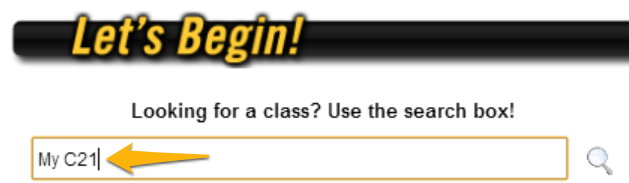
  2. Search for My C21, then click on the Self-Paced tutorial:

  3. Click Launch to begin the training:

You can also check out the Full User Guide or the FAQ.
Related Posts Plugin for WordPress, Blogger...