Showing posts with label Facebook. Show all posts

Tech Tip: Facebook Lists


Quick Tip!


Facebook Lists


Facebook is an excellent way to stay connected with friends, family and clients, but as your Friend count grows, you may be facing a lot of information from a lot of different people. Drill down to what you need most by creating Facebook Lists.

Step 1: Create a new list.
After logging into Facebook, start by going to the profile page of someone you would like to add to a list. Click on the Friends button, then select "Add to list..."

Scroll down and select "+New List..."

Type the name of your list and press Enter to save.
*Note: According to Facebook, these lists are not public and notice will not be sent out that you added someone to a list. However, just in case this changes in the future, be mindful of what you're naming your lists!

Step 2: Mass edit your list.
You could go to each individual person and add them to your new list following the steps above (selecting the list name instead of creating a new list), however the easiest way to add additional people to your new list is by going to your Lists Homepage (https://www.facebook.com/bookmarks/lists)

Click on the name of the list you just created:
You can also create lists from this page.


Then click Manage List > Edit List in the upper right hand corner:


Then click On List List > Friends to see your whole friends list:


Simply click on the friends you would like to add to this particular list. A check (like Albert Bui) means they're on the list; no check (like Allison Brekke) means they are not on the list. Click finish when you are done.


You can edit your list as often as you like.

Step 3: View your list in the Newsfeed.
To make your list easily accessible, locate it in the left sidebar under Friends - you may have to scroll down a bit. Click on the Edit Pencil and select "Add to Favorites":


You will now see the list under Favorites in the left sidebar. Simply click on it to see updates only from the people you've added to your list:


Weekly Tech Tip: Use Facebook Lists

Facebook is an excellent way to stay connected with friends, family and clients, but as your Friend count grows, you may be facing a lot of information from a lot of different people. Drill down to what you need most by creating Facebook Lists.

Step 1: Create a new list.
After logging into Facebook, start by going to the profile page of someone you would like to add to a list. Click on the Friends button, then select "Add to list..."

Scroll down and select "+New List..."

Type the name of your list and press Enter to save.
*Note: According to Facebook, these lists are not public and notice will not be sent out that you added someone to a list. However, just in case this changes in the future, be mindful of what you're naming your lists!

Step 2: Mass edit your list.
You could go to each individual person and add them to your new list following the steps above (selecting the list name instead of creating a new list), however the easiest way to add additional people to your new list is by going to your Lists Homepage (https://www.facebook.com/bookmarks/lists)

Click on the name of the list you just created:
You can also create lists from this page.


Then click Manage List > Edit List in the upper right hand corner:


Then click On List List > Friends to see your whole friends list:


Simply click on the friends you would like to add to this particular list. A check (like Albert Bui) means they're on the list; no check (like Allison Brekke) means they are not on the list. Click finish when you are done.


You can edit your list as often as you like.

Step 3: View your list in the Newsfeed.
To make your list easily accessible, locate it in the left sidebar under Friends - you may have to scroll down a bit. Click on the Edit Pencil and select "Add to Favorites":


You will now see the list under Favorites in the left sidebar. Simply click on it to see updates only from the people you've added to your list:


Q/A Friday: Content Curation for Every Digital Lifestyle

Q: I know it's important to be in-the-know and share useful content with my friends and fans, but I just don't have the time to write my own stuff or spend hours searching for valuable articles. I also prefer [email/websites/social networks/using my mobile device]. Isn't there a better way?

A: Regardless of how you prefer to consume information, there's a method to fit your needs. A lot of the options are crossovers as well. For example, you may prefer email, but you probably also receive your email on your smart phone, where you likely also access your social networks. Keep in mind also that this list is by no means exhaustive!

If you prefer... EMAIL
About You: You live in your inbox. It's the one place where you know you can find anything, any time. If someone needs to get in touch with you, shooting you an email is the best way to do it.
Ways to Curate:
  • Newsletter Subscriptions. Find websites that create content you appreciate and find useful and subscribe to receive their regular newsletter. This can come in the form of a blog (like Houzz) or a news website (like NBC San Diego). 
  • RSS Email Notifications.  You can receive email updates from nearly any website that updates regularly using RSS, or Really Simple Syndication. These feeds can come directly to a special folder in your inbox in Outlook or delivered as an email via a third party service such as FeedMyInbox or Feed2Mail.

If you prefer... WEBSITES
About You: You prefer the convenience of a full keyboard, standard mouse and larger screen. You may not always be with your laptop or PC, but you favor its company to a mobile device.
Ways to Curate:
  • YouTube Subscriptions. Even if you don't create content on YouTube, having your own account has its perks. When you subscribe to a channel, not only can that content be emailed to you on a weekly basis but you are able to access it in the Subscriptions section of YouTube.
  • Blog Subscriptions. Similar to YouTube, you can subscribe to blogs when you have an account with either WordPress or Blogger. Simply log into your account and look for the "Blogs I Follow" section (WordPress) or "Reading List" section (Blogger).
  • RSS Feeds. RSS is a simple and expedient way to have content from various websites delivered to you in one centralized location. Google Reader and FeedReaderOnline are two good choices.
  • Personalized Landing Page. Unfortunately, iGoogle will soon be extinct however there are other sites waiting to take its place. NetVibes and Protopage are functional as both an iGoogle replacement or a first-time user landing page.
If you prefer... SOCIAL MEDIA
About You: You are a champion Facebooker, Tweeter, Pinner or Blogger. Email generally feels clunky, and you tend to keep in contact with people on these sites instead.
Ways to Curate:
  • Twitter Lists. If you've ever used Twitter, you know how quickly information can pile up. Make sense of the noise by separating who you follow into lists. Lists can be public or private and there's no limit to how many users you can place in a list, or what topics you create. Bonus: Hootsuite can help you digest your Twitter lists even more efficiently.
  • Facebook Lists & Interest Lists. Similar to Twitter lists, Facebook allows you to sift through the noise and focus on the accounts you want to hear. Friend lists are private and allow you to filter your friends into separate groups. Interest lists are more about topical content. 
  • Paper.li. Paper.li takes your Twitter lists and formats the content into a digital newspaper. Not only can this make it easier for you to digest information, but it also can share with the public via Twitter.
If you prefer... MOBILE DEVICES
About You: You are a person on the go and hate being tethered to a desk. You likely access all of the above options through apps on your phone or tablet.
Ways to Curate:
  • Preferred Source Apps. Many content creators have their own mobile phone apps that will even notify you when there is new content available. Mashable, TechCrunch, CNN and MSNBC are good places to start.
  • Aggregation Apps. If you'd rather streamline the number of apps you have running, an aggregator is your best option. Check out Zite, Flipboard, Pulse or Google Currents. Besides having an assortment of pre-selected sites available, these apps also allow you to customize your content by adding RSS feeds from your favorite sites or your social media connections.

So, how do you have content delivered to you? Share with us in the comments!


All images courtesy FreeDigitalPhotos.net.

AgentRB OC: Facebook for Busy People

Q/A Friday: What are 5 useful resources to help me get my Social Networking questions answered?

Q: I’m a beginner/intermediate/advanced user and need some resources to help me out. What do you recommend?

Image via renjith krishnan
A: Excellent question! Just keep in mind that there are plenty more resources available than what’s on this list, but it's a great starting point.

  1. Mashable Guidebooks
    Mashable has created great, multi-level guidebooks for both Facebook and Twitter. Topics range from Intro/101 to using these platforms for business to platform-specific topics like Twitter Lists and Managing Your Facebook Wall.
  2. Social Media Examiner How-To SectionBesides Mashable, one of my favorite social media blogs is the Social Media Examiner, and they just happen to have a great and constantly changing How-To Section. (At time of publication, current how-to’s include “5 Ways to Enhance Your Facebook Timeline Page With Images” and “5 Tips to Becoming a Top Blog in Your Industry”)
  3. Inman Next
    Chris Smith, Katie Lance and the rest of the Inman Next crew do a fantastic job of making social manageable, especially for those in the real estate industry. Whether you're looking for something long and detailed or short and sweet, video or text, mobile or social, Inman Next has something for you. Make sure you check out their Next TV section and join the InmanNext Daily Delivery group on Facebook!
  4. Tech Support Group for Agents on Facebook
    What started out as a small group of agents helping each other with social media and technology has grown to nearly 4,000, but don't let that number scare you! The great thing about having such a large (and active) group is that questions tend to be answered in less than 15 minutes, and there's no such thing as a too simple or dumb question. Thanks to the group search feature, you can see if your question has already been asked, and there are extensive docs within the group featuring information on vendors, webinars, apps and more. Join us!
  5. Google
    The solver of all life’s problems :) Keep in mind that you can skip using words like "the," but it's sometimes easier to drill down to your subject using operators. For example, searching facebook site:mashable.com will yield pages on Mashable that reference Facebook and searching facebook filetype:doc will yield .doc files that reference Facebook. Check out this great infographic on effective Google searching and Google's search help article for more information.

Q/A Friday: What can the Roost Social Media Toolkit do for me?

Have you heard? No? I’m sorry…
I was under the impression that everyone had heard…

The word: Roost launched it’s Social Media Toolkit yesterday.

roost

roost2

From the Roost Blog:

…In talking to hundreds of individual REALTORS®, we came to an powerful realization: The vast majority of agents still get 80%+ of their business via word-of-mouth referrals. [This], combined with the incredible mainstream adoption of of Facebook and the Social Web over the past year, triggered a thought in our minds:  What if we could build technology that helps REALTORS® optimize the 80%+ of their business that really matters? [...] The Roost Social Real Estate Toolkit is easy to use and all about helping you grow the biggest, most productive part of your business: word-of-mouth driven referrals from the people you know and the people who know them.


First things first: how can you get the app?
Easy peasy lemon squeazy: go to the Roost App page of Facebook, click the “Go To Application” button, allow permissions, and follow the directions. Need a more visual example? Roost created a great video tutorial.

So… what can this do for you? A lot, actually…

Create a real estate tab on your personal page or business fan page
(This first example if for a personal profile. See my test profile page in action here. And click on any image below to see a larger version in a new window.) 

roost3

Add your picture (from your profile picture album), a tagline, and some marketing copy. Note: to stay in compliance with Facebook’s TOS, you will not be able to edit a phone number. I added mine manually in the marketing copy section. Is this a violation? I’m not sure.

You also can add introduction copy to the left of your photo, which is the text above the Google Map image.

Based on the information you provide about your market area, Roost will provide market stats, education information, graphs from Altos Research, and a Walk Score (see my test page.)

roost4


You can also add up to four listings (active, contract accepted, sold, open house). The Roost app will ask you to create a photo album called “Listings” from which you will select the photo for each property (I went with clip art for simplicity’s sake- you should put an actual home picture). You enter the address, price, bed/bath/square footage and a short headline.

You can edit, change, or remove these listings any time.

roost5

How does the personal page differ from the business fan page?

(Click here to see my test business page in action.) The biggest (and maybe only?) difference that I can tell is that you are now able to add a phone number, web address, and company logo. Note: You will still need to select a page owner and owner picture. Because of this, you wouldn’t be able to use this on behalf of a company without singling out one person as the “owner”.

Schedule future posts from within Facebook with Publisher

The Roost Social Toolkit also provides an invaluable tool: the ability to schedule future posts (to your profile or any page that you admin). These posts can include link previews as well by using the Add Link function. Check out Roost’s video tutorial here.

I tested two links last night and was rather pleased with the outcome:

roost6

As you can see, the posts come via Roost, so you do run the risk of losing exposure if people “hide” the Roost app, just as you are if you use Hootsuite, Tweetdeck, or the Twitter app.  FYI: The first test didn’t show an image when I created it, and the second test replaced apostrophes with special characters. Be aware also that you can only schedule posts to go out at the :00 :15 :30 and :45 marks, and there is currently no way to use the Tagging feature in a scheduled post (from any program).

Who will benefit most from using this?
Realtors who are using Facebook only will find this tool to be a great aid, if only for the publisher (although having that non-invasive “I’m an agent!” reminder with the Real Estate tab can only help you). If you’re all about social media and like the ability to schedule and post to multiple sources (FB/TW/LI/etc) at once, I would stick with an outside program- my favorite being Hootsuite.

Room for improvement?
Knowing admittedly nothing about creating Facebook apps… this is my wishlist for the Roost Social Toolkit:
1. The ability to use the Tagging function in a scheduled post
2. A plugin or popup to easily schedule links from other windows a la the Facebook Share Button, Hootsuite Hootlet, or Bit.ly Sidebar
3. The ability to add a few more listings. (It doesn’t make sense to me that you can only add four when there is clearly space for six).
4. The ability to upload images off the hard drive vs from Facebook Albums
5. The ability to use the Toolkit on a page without selecting a singular owner (although I suppose there would be lesser incentive to purchase a custom app from Roost)
6. (And this one is purely because I’m lazy) The ability to auto-populate listing data from an MLS number

Q/A Friday: What are 5 things I can do to protect my privacy on Facebook (and online in general)?

Q: Is it possible to customize who can see what on Facebook? And what can I do to protect my identity from being stolen? Basically, I just want to be safe!

A: It absolutely is possible (and wise) to maintain your online privacy… but remember, I’m of the mind that whatever you put on the internet is public record, regardless of privacy settings, so think before you post! That being said, here are a series of steps you can take to safeguard yourself, and keep that embarrassing-but-hilarious party photo away from prying eyes.

1. SET YOUR BLANKET PRIVACY SETTINGS ON FACEBOOK
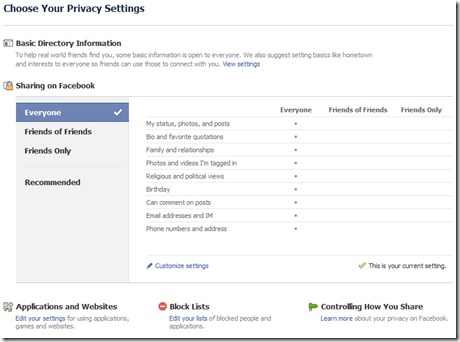
fbprivacy
Did you know that with the click of a button, you can instantly select one of four privacy settings for your entire Facebook? The options are EVERYONE (which does in fact mean everyone, on Facebook or not, and indexable by search engines like Google), FRIENDS OF FRIENDS (which allows your mutual friends some access but reserves some things, like contact information, for your actual connections), FRIENDS ONLY (which only allows access to people you have confirmed as friends), and RECOMMENDED (which allows different groups of people to see different things).

To access this screen, log in to Facebook, then navigate to ACCOUNT (upper right-hand corner) > PRIVACY SETTINGS. Select the Privacy Setting you are comfortable with and click the APPLY THIS SETTING button to save.

2. TO GET MORE DETAILED, CREATE FRIENDS LISTS
Friend Lists are ways of categorizing the people that you connect with on Facebook. You can have up to 100 lists, and up to 1,000 people per list (people can be cross-categorized). These lists are private. Besides allowing you to filter the information you see in your newsfeed, you can also set specific privacy rules based on your Friend Lists.

To create a Friend List:
1. Once you are logged into Facebook, navigate to ACCOUNT>EDIT FRIENDS
2. Click “Create New List”
3. Name your list and select friends to add by clicking on them. You can also type a name in the search to find someone directly. If you check someone on accident, just click again to uncheck them.
4. Click “Create List”

When you edit your Privacy Settings, clicking "Customize" for any setting will open a Custom Privacy pop up dialogue. Under "Make this open to," select "Specific People" form the drop-down menu and enter the name of the Friend List with whom you’d like to share the content (you can enter an individual as well). You can enter Friend Lists or individuals under “Hide this from” as well. If a person is cross-listed, the more restrictive privacy settings will be honored.fbprivacy2You will also be able to adjust the privacy settings for each piece of content you post (picture, link, text, etc.) To do this, click on the lock icon next to the share button, select “Customize” and follow the steps above. fbprivacy3For more information/FAQ on Friend Lists, check out Facebook’s Help Center.


3. SAFEGUARD YOUR FACEBOOK ACCOUNT
Did you know that in less than 5 seconds, you can request that Facebook notify you any time your account is accessed on a new computer or mobile device? Navigate to ACCOUNT>ACCOUNT SETTINGS and look for ACCOUNT SECURITY:

fbprivacy4Once you submit this setting, Facebook will ask you to name any new device you log in on. It will keep a log of these devices as well as notify you by email when a new device is used. Don’t remember typing in a device name? Time to change your password!!

Another way to safeguard your account is to be aware of the applications you authorize, Applications need to access your account information (contact info, post to your wall, access your Friend List, etc.) for various reasons, but not all applications are friendly. Any application that seems too good to be true most likely is. To see the applications that you’ve authorized, navigate to ACCOUNT>APPLICATION SETTINGS and select “Authorized” from the drop down menu. Don’t recognize something or use it any more? Click the X.

4. BE SMART ABOUT YOUR PASSWORDS
It’s OK to recycle your passwords, but here are several tips to keep in mind:
-Don’t have the same password for EVERYTHING! At least have a separate password for email accounts, one for social networks, and one (preferably more complex) for financial or sensitive information.
-Do you have a password list? If it’s on your computer, password protect it! Google “[program] password protect document” to find out how to do this. (Note: doesn’t work for Outlook, but Word/Excel/Publisher are all OK.) If your password list is printed, know where it is at all times, and I recommend that you attempt to code your services (IE, just write BANK or $$ instead of WELLS FARGO, etc.)


5. KEEP YOUR EMAIL (AND COMPUTER) SECURE
-If you receive a suspicious email from any source (a social network, financial institution, etc), DO NOT click on the link provided in the email. Instead, go directly to your browser and type in the URL manually. REMEMBER: a bank/social network/etc will NEVER contact you asking for your password or other sensitive data.
-NEVER download/open/install a file of any type from an unknown source.
-If you receive a .zip file from ANY source, even one that you know, verify that it was actually sent from that person before you download/open/install it.
-Anything claiming to come from a Nigerian prince or that you’ve won a prize for doing nothing, etc., is a scam. This goes double for emails claiming that if you forward to x-amount of people you will receive a personal email from Bill Gates/donate money to a charity/ ~*~*~hAvE YoUr WiSHeS gRAntED~*~*~.

Want the notes (and lots more step-by-step and tips) from the Online Privacy and Safety training? Click here!

Q/A Friday: How do I come up with a realistic (and successful!) social media plan?

Q: I feel like I need to make a bigger dent in the social media world, but I have no idea where to start. Is there an easy way to do this? A: YES! Managing your social media presence is really as easy as one-two-three….and four: Topics, Resources, Schedule, Spontaneity.
  1. Decide on your topics Make a list of the things you want to talk about. This can be anything you want, as many as you want, and remember that your list can change as you progress. EXAMPLE: My topics are social media news, San Diego events/culture, baking/cooking, and freebies/discounts.


  2. Identify your resources Determine (and bookmark!) sources who are talking about what YOU want to talk about. This can be done by a simple Google search of your topics list. You should shoot for at least two resources per topic, but there’s no real wrong number. EXAMPLE: My resources are Mashable, Social Media Examiner, Sign on San Diego, NBC San Diego, The Pioneer Woman, Bakerella, Groupon San Diego, and Slick Deals.

  3. Schedule the week ahead Create a free Hootsuite account and link your Facebook (profile, page, or both), Twitter, LinkedIn accounts, etc. Schedule time for yourself to take a quick scroll through your resources (once a week for an hour should suffice, but you can adjust this to fit your needs). As you find something that you want to share, schedule it right then and there. BONUS! If you use the Hootlet fuction in Hootsuite, it will automatically shrink your link AND provide you with click analytics! EXAMPLE: Monday might be my Social Media day, so I would browse through my social media resources and schedule something for Monday: BANG! Facebook passes 500 million users.http://bit.ly/chywhb  If I want Friday to be my “what’s up this weekend” day, I might look through my local events/culture resources and schedule something for Friday: Didn't score a ticket to @comic_con this year? Good news- there are plenty off-site events, like Zombie Walk! #sdcc http://bit.ly/b5fPCL Check out just how easy it is to use the Hootlet:
  4. Jump in spontaneously. At this point, you’ll be regularly posting like a pro, but remember that social media is also a conversation. Log on at least once a day and take a quick scroll down your feed to see who’s saying what. Leave a few comments, check in with at least one person you haven’t connected with in a while, manage your requests, etc. Another great way to be spontaneous is to use your smart phone smartly. Find a great restaurant or come across a street fair or have something else to say? Get your phone out and take 30 seconds to post it to Twitter or Facebook – even better, take a picture! The easiest way to do either is using an app, but you can also use your phone’s internet service or send a text message to either service. EXAMPLE: Avoid I15 north like the plague! I left Eastlake at 4... Single digits from the 8. Just passing Miramar now. Save yourself if you can! (Posted via mobile web)
Remember, part of your goal should be to become an information resource for the people you connect with. Following these four steps will help you manage your time and make the most of your connections!
Related Posts Plugin for WordPress, Blogger...