Post your listings to Craigslist in seconds with Unique Property Sites

Did you know... besides providing easy and powerful individual property websites, the Unique Property Sites tool in 21Online will allow you to create Craigslist ads in SECONDS and for FREE!


How To:

1. Log Into 21Online.

Click on the Unique Property Sites (Edit) in the Tool Library Box.

2.  Click Edit Site for the property you would like to advertise (this will open PropertiesOnline in a new tab or window).


3. Click eFlyer (Craigslist) to access the HTML code for your Craigslist flyer.

You may also make any edit to your Unique Property Site by clicking on the Control Panel Options.

4. Click Select Snippet then press CTRL+C to copy the HTML code.

You may also click Preview to see what the ad looks like.

5. Go to Craigslist and log in, then select your posting city and click Go.

Logging in allows you to easily repost your ads once they expire. Follow the post category prompts until you get to the actual posting screen.

6. Place your cursor in the Posting Description box, then press CTRL+V to paste the HTML code.

Also fill in the posting title and any further information you wish to include according to the input boxes. Click Continue to proceed. You may optionally upload additional photos on the next page.

7. Preview your ad and click Publish.

If Craigslist requires any further action, follow the instructions provided. Otherwise, your post is now public!

Need more assistance?

Live training is available by clicking on Century 21 Learning System CLS in the Tool Library and searching for Unique Property Sites.
Click here for the full Post to Craigslist tutorial.
Click here for the Unique Property Sites FAQ.

Watch the Unique Property Sites video:


Create custom CENTURY 21 videos with Ad Maker

Did you know... The Ad Maker Tool in 21Online will allow you to customize popular CENTURY 21 advertisements, including videos, in SECONDS and for FREE!

Check out one of our agent's videos! It's the same video that was played during the 2013 Superbowl, but with the agent's contact information at the end!


How To:

1. Log in to 21Online.

Click on the Ad Maker System in the Tool Library Box (Ad Maker will open in a new tab or window).

2. Click on My Account and verify that your information is correct.

This is what will display at the end of the video. You can only edit the Personal Information. If there is an error or change needed in the Company Information, please email hr@century21award.com.


3. Click on Ad Library, then Videos.


Select the video of your choosing. 
  • Click the magnifying glass icon to preview (it will take several moments to render) and the shopping cart icon to order your custom video
  • You do not need to preview first if you would like to skip this step.


Select Send to Self in the Trafficking Options pop-up.


Click Continue Shopping to order more ads or Checkout to complete your order. Your custom video will be ready for download in a few minutes!


4. Download your video and Share!

Click on Finished Ads, then Order Number, followed by Click Here to View the Final Ad to start the download.

Once your .MP4 file has downloaded, upload it to YouTube, email it to your SOI, share on social networks, use it in your online marketing and display it on your website!

Need more assistance?

Full training is available in Ad Maker by clicking on Ad Maker Training:


Increase your online reach with your free MyC21 Site

Did You Know... 90% of people used the internet in their home search in 2012?


You probably already have your own website, but did you know that you also have a website through CENTURY 21?


Your FREE My C21 Site takes just moments to customize and generally ranks first page in Google Searches. To get started, just follow these directions:

1. Log into 21Online and click on My C21 Site next to your profile photo:

2. Double check your contact information. Need changes made to your CREST EDG Information? Contact Human Resources at hr@century21award.com.

3. Follow the prompts in the site wizard. Click the Save and Continue button to move on:


4. When you are finished, check out your final results!


Need more assistance? Get the full, self-paced tutorial in CLS!
  1. Log into 21Online and navigate to CLS in the Tool Library:
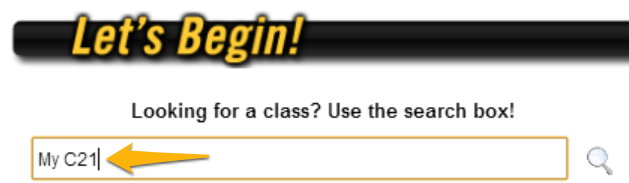
  2. Search for My C21, then click on the Self-Paced tutorial:

  3. Click Launch to begin the training:

You can also check out the Full User Guide or the FAQ.

Weekly Tech Tip: Use Facebook Lists

Facebook is an excellent way to stay connected with friends, family and clients, but as your Friend count grows, you may be facing a lot of information from a lot of different people. Drill down to what you need most by creating Facebook Lists.

Step 1: Create a new list.
After logging into Facebook, start by going to the profile page of someone you would like to add to a list. Click on the Friends button, then select "Add to list..."

Scroll down and select "+New List..."

Type the name of your list and press Enter to save.
*Note: According to Facebook, these lists are not public and notice will not be sent out that you added someone to a list. However, just in case this changes in the future, be mindful of what you're naming your lists!

Step 2: Mass edit your list.
You could go to each individual person and add them to your new list following the steps above (selecting the list name instead of creating a new list), however the easiest way to add additional people to your new list is by going to your Lists Homepage (https://www.facebook.com/bookmarks/lists)

Click on the name of the list you just created:
You can also create lists from this page.


Then click Manage List > Edit List in the upper right hand corner:


Then click On List List > Friends to see your whole friends list:


Simply click on the friends you would like to add to this particular list. A check (like Albert Bui) means they're on the list; no check (like Allison Brekke) means they are not on the list. Click finish when you are done.


You can edit your list as often as you like.

Step 3: View your list in the Newsfeed.
To make your list easily accessible, locate it in the left sidebar under Friends - you may have to scroll down a bit. Click on the Edit Pencil and select "Add to Favorites":


You will now see the list under Favorites in the left sidebar. Simply click on it to see updates only from the people you've added to your list:


Weekly Tech Tip: Daily Agenda Delivery


If you're the type of person who likes to know what the day has in store for them, and you're also the type of person who checks their email first thing in the morning, this week's tip will be a real treat. Set up Agenda Delivery in your Google Calendar and receive a daily email around 5AM with the contents of your calendar.

Step 1: Click the drop-down arrow next to My Calendars and select Settings.

Step 2: Click on Notifications for the calendars that you would like to receive daily emails for. In my case, I keep separate calendars based on the activity type.

Step 3: Check the box for Daily Agenda and click Save. Repeat for as many calendars as you want in your agenda.

That's all there is to it! From now on, your agenda will be delivered to your inbox first thing in the morning to inform you about your day:


Weekly Tech Tip: Learn Helpful Features

Chances are, the computer or device you are using has a series of helpful features that you aren't aware of. Commit to picking up a new trick once a week and you'll be more efficient in no time!

WINDOWS 7: Snap

Capitalize on your screen size by using the Snap feature, which automatically fits a window to half of your screen. This is especially useful when comparing documents, moving files, or working in multiple windows.

TO DO: Drag the title bar of a window to the left or right side of the screen until an outline of the expanded window appears, then release the mouse. Repeat on the opposite side of the screen with another window to arrange them side by side.

TIP: Dragging a window to the top of the screen will maximize it. To Snap a window using your keyboard, hit the Windows logo key and the left or right arrow.


iOS/Windows: Cycle Through Open Applications

Both Windows and iOS will let you quickly cycle through your open applications and windows.

TO DO: Hit the ALT+TAB keys (Windows) or CMD+TAB keys (iOS) to bring up the Cycle Window (Windows version pictured above). Keep hitting these keys or hold them and use the arrow keys to view your open windows, and release to bring your selected window to the forefront.


iPhone/iPad/Android: Drag/Drop to Create Folders
You can group apps on your iDevice or Android to declutter and streamline your experience.

TO DO: Press and hold an app until it is selected. On iDevices, the icons will start to wiggle and on Android it will "lift". Drag the app icon on top of another app icon and release. On iDevices, you will need to hit the home key one final time so save your changes. You can also rename these folders.


Get more tips here:
Apple (iOS/iPhone/iPad): http://osxdaily.com/
Windowshttp://www.microsoft.com/athome/setup/windowstricks.aspx
Android: http://www.droid-life.com/category/tips/


Want more weekly tech tips? Click here!

Weekly Tech Tip: Adjust Your View

Chances are, you spend a good chunk of your time at a computer. To avoid back, neck and shoulder pain as well as eyestrain and other overuse injuries, take some time to make sure your desk is as ergonomic as possible. Your body will thank you!


Tips & Tricks:

  • The top of your monitor(s) should be at or just below eye level. Invest in a riser to put yours at the proper height. If you are using a laptop, you will also need to invest in a keyboard/mouse set as your keyboard will also be raised. Money-saving tip: A cabinet shelf makes a great, cheap alternative.
  • Make sure you're sitting pretty. Your chair should be comfortable, include lower back support and have arms to support your elbows and forearms.
  • Your forearms should be parallel to the floor, so make sure your chair is at the proper height.
  • Your feet should rest flat on the floor. If you are short like I am, a foot rest can make sitting much more comfortable.
It's also important to take breaks!
Check out these websites from Apple, Microsoft and OSHA for more tips, tricks and diagrams.


Want more weekly tech tips? Click here!

Weekly Tech Tip: Clean & Disinfect

You wash your car, and you wash your coffee mug, but how often to you give your tech space a once over?

Image via: ScottChan/FreeDigitalPhotos.net

Given that your keyboard is dirtier than a toilet and your cell phone can give you pink eye, take a few minutes this week to clean and disinfect your work space and technology.

What you need:

  • Disinfectant wipes or spray
  • Canned air
  • Microfiber cloths or disposable microfiber cloths
  • Consider a tech putty such as Cyber Clean, or a UV Sanitizing Wand
  • Hand sanitizer - keep this on your desk to sanitize your own hands throughout the day as necessary.
What to do:
  • Start by clearing your desk and cleaning it like any other surface. As you start putting your things back in their places (phone, stapler, etc.), give them each a onceover with the disinfectant.
  • Use the canned air to get the gunk out of your keyboard and any other items with crevices for crud. The tech putty will also work wonders here. Give your keyboard an mouse a wipe with the disinfectant as well. If it's possible, you'll get the deepest clean by removing components (such as the battery cover on your mouse) as you go.
  • Give your cell phone a wipe, too.
  • IMPORTANT NOTE: Never spray a cleaning product directly on an electronic device! Always spray it on a cleaning cloth first, then wipe the device. Also, never use an abrasive cleaner.


Want more weekly tech tips? Click here!

Weekly Tech Tip: Get a Tune Up

Last week, we made our inbox manageable; this week we'll be making a few little adjustments to speed up our equipment.

Image via David Dominici/FreeDigitalPhotos.net

1. Clear your browser's cache & cookies.
Your computer will save items (graphics, media, etc.) to make speed up your internet experience. The problem is that over time, these cached downloads can become pretty hefty and bog down your system. The good news is that emptying the cache is quick and easy; some browsers will even let you specify when the browser should empty the cache automatically! Get detailed instructions for your browser (Chrome, Firefox, Safari or Internet Explorer) at RefreshYourCache.com.

Windows users can also opt to use the Disk Cleanup Utility, which will remove temporary internet files, downloaded program files, temporary program files, empty the recycle bin and more. Hint: I just reclaimed a whopping 11.9 GB using this tool.

2. Remove any bugs.
Ideally, you already have virus and malware protection on your computer that runs automatically, but just in case... Take a few minutes to download one of these free programs and make sure you don't have any hidden bugs on your machine. (I personally use Malware Bytes.)


3. Change your startup programs.
Do you feel like it takes forever for your computer to turn on and get going? An overloaded list of startup programs may be to blame. Please be aware that you should only stop programs that you know you do not need; some startup programs are critical to the operation of the computer. Things that are safe to remove from startup include: iTunes, Spotify, real estate programs such as the key card updater, etc.

Stop unnecessary programs from automatically opening one of several ways:

  • Within the program itself: check the settings for the program. Look for a setting related to starting when Windows launches and disable it.
  • **Use the MSCONFIG tool: Click Start > Run and type in msconfig. Select the Startup tab and uncheck the applications that you don't want to run on your next startup.
  • **Install AutoRuns for Windows: This program is considered one of the more comprehensive startup managers available. Click here to download. 
*Note: these methods are recommended for more advanced users.

Want more weekly tech tips? Click here!
Related Posts Plugin for WordPress, Blogger...