

Hot App Alert: Astrid Tasks


Q/A Friday: What are 5 essential pieces of technology that I shouldn’t be living without?
Q: Tech is amazing, but also expensive and ever-changing. Without bankrupting myself, what are five pieces that I absolutely must have to improve my professional (and personal) life?
A: It’s no lie... I am definitely someone who would have the latest-and-greatest everything if I could! Unfortunately, that’s not always possible, but there are five pieces of equipment that I absolutely CANNOT live without, and any agent worth their salt shouldn't either.
1. SMART PHONE
2. LAPTOP
3. BACK UP PLAN
A: It’s no lie... I am definitely someone who would have the latest-and-greatest everything if I could! Unfortunately, that’s not always possible, but there are five pieces of equipment that I absolutely CANNOT live without, and any agent worth their salt shouldn't either.
1. SMART PHONE
 | iPhone? Android? Whichever you prefer. The really key thing is that you get a data plan- without one, a smart phone is really rather dumb, wouldn’t you say? Make sure you get a data plan that will fit your needs. Be sure you monitor your usage as overage charges are no laughing matter! Key Ingredients: Data Plan, Web Capable, Email, Texting, Camera Anything more only matters if you will use it. The same goes for apps. Things that should be second-nature: Email and texting, getting a map or navigation, taking and sharing photos/video (via email, text or social network), using any app that you download |
2. LAPTOP
 |
I wish I didn’t have to have this in the list, but it continues to surprise me how many people either don’t have laptops or don’t take them out of their homes… that’s why you got a laptop! The good news is that pretty much every lap top made today comes standard with the key ingredients below.
Key Ingredients: Plenty of hard drive space (at least 320gb), Decent Processor & RAM, Built-in camera, WiFi/Bluetooth capable, CD/DVD burner, Enough ports for your peripherals (USB/Firewire are essential, eSATA and HDMI are a bonus) Things that should be second-nature: connecting to a wireless network, opening and using programs, organization & folder structure (where you save your documents) Regarding Size: I love my 17.1” desktop replacement enough that I don’t mind lugging it around, but if size/weight are what keep you from bringing your laptop to the office or into the field, don’t go for something that big! A 15" screen will suffice. Regarding Macs: If you would prefer a Mac, make sure you are aware of any restrictions with the systems you currently use. For example, it has historically been difficult to use a Mac with the MLS. Be aware of limitations and bring a list to the Apple Store to discuss with a Genius. |
3. BACK UP PLAN
 |
That lovely laptop full of your data is useless if it is lost, stolen, or damaged beyond repair. If you only take one piece of advice from me, please let it be to back up your data. You truly never know if (or when) something might happen.
Key Ingredients: Automatic/Scheduled Backups, Backup Software (for external drives), Ability to back up large or hidden files such as an Outlook PST file External VS Cloud-based: If you are picking between one or the other, I would recommend cloud-based storage such as Carbonite. An external drive is great for quick, local file recovery, however that will only be effective if a) you make sure it is backed up on a regular basis and b) the external drive is undamaged or not taken in the event of theft. Bonus: Most cloud-based storage comes with a web interface and smart device apps, allowing you to access your data from anywhere. |
4. CAMERA
5. CLOUD-BASED SYSTEMS
 | Still camera? Yes. Video camera? Yes, that too. Got one that does both? Even better, but is it easy for you to edit that video or put it on YouTube? If not, you might want to consider a pocket camera such as a Creative Vado or Kodak Zi. Key Ingredients: Easy for you to use, Easy to upload, Easy to edit, High Definition video (at least 720) A note about phone cameras: As I said above, you should absolutely have a camera on your smart phone, but you should still consider a standalone. Does your take high quality pictures for your listings? Is the video clear and easy to edit? If the answer to these questions is yes, I give you permission to skip this category. If not, you know what to do. |
5. CLOUD-BASED SYSTEMS
 | Do you keep notes via scraps of paper and Post-Its? Stop! There are plenty of cloud-based (meaning accessible via the internet, and usually with an app for your smartphone) services to help keep track of notes, tasks and contacts. Not only are these cloud-based systems convenient, they help to ensure that you have the same information available on your computer or phone or between teammates and assistants. I've named several task management apps below; test them out to decide which one best fits your needs. Key Ingredients: Easy for you to use The Big Key: Force yourself to commit to these systems. Resist the urge to write something on a note pad and instead take out your smartphone or enter it on your computer. Systems I recommend: Google Apps (Contacts, Calendar, Documents), Evernote, Springpad, Astrid Tasks, Producteev, TaskOS, Any.Do Bonus: Many of these systems are free; some have a Pro option for more capability. |
So, tell me: What are your most essential pieces of tech?
Hot App Alert: Skitch

Q/A Friday: What are 5 ways to use Pinterest in real estate?
Q: Everyone seems to be buzzing about Pinterest lately. What exactly is it and how might I capitalize on this latest boom in social media?
A: Ah, Pinterest! (Or as I like to call it, my nightly-wind-down-before-bed-routine). This great service allows users to create virtual "boards" with visual "pins" to gather ideas and inspiration. And this service definitely isn't just for college kids!
According to a February 2012 post on Mashable...
A: Ah, Pinterest! (Or as I like to call it, my nightly-wind-down-before-bed-routine). This great service allows users to create virtual "boards" with visual "pins" to gather ideas and inspiration. And this service definitely isn't just for college kids!
According to a February 2012 post on Mashable...
- 67.4% of Pinterest users are 25-54
- 68.2% are female
- 50% have children
- 28.1% have an annual household income of $100K+
Sound like a demographic that you might want to tap into? Not so fast! Pinterest is a social tool, and shouldn't be approached as a quick means to a paycheck. The good news? There are plenty of ways to showcase your knowledge and home prowess without creating a pin like this one:

Without further ado, I give you my 5 tips for Pinterest:
1. Pin your city. One of my favorite things about real estate is that being a good agent is so much more than negotiating a sale. Your clients depend on you for recommendations on the best places to eat, the bars with the best happy hour, the park with the best running trails, the gas station with the cheapest gas... Take that to the next level by creating a board dedicated to your city and the surrounding areas. Bonus points for using your own photos, videos and blogs to highlight why you love where you live! Need an example? Check out my NYC Favorites board.
2. Pin home improvement and DIY adjustments.
Hands down, one of my favorite things to find on Pinterest are unique and clever ways to make a space more organized/kid friendly/efficient. Check out these great pins:
3. Ask clients who are at the very beginning of the home search to create a "Dream Home" board.
That's right, my friend... it's not always about you! Encourage your "just getting started" clients to use Pinterest as a tool to visualize what they want in their next home, even if they venture a little into fantasy land. As you become more familiar with their desires, design style and dreams, you'll be able to preview homes with more accuracy, and maybe even pick out a home that might seem a little unlikely but includes features that they tend to pin. By the way, people are doing this already... you might as well be a part of it!
4. Follow your clients' boards in general.
Pinterest can help you get a feel for someone's personality, sense of humor, likes and dislikes and more, which can only help you with those long periods of togetherness that you'll experience during the real estate process. At the time of this writing, Pinterest is still in invite-only mode, but you can invite your clients if you have an account. Way to be with it, you social/tech genius :)
5. Showcase YOU.
Shared interests and connection points could very well be the reason why a client chooses you over another agent. Whatever your interests - amateur chef, the color pink, fond childhood memories, causes near to your heart - let your freak flag fly! A few of my favorites...

(Don't believe that this is ineffective to the point of counterproductive? Check out some of the comments.)
Without further ado, I give you my 5 tips for Pinterest:
1. Pin your city. One of my favorite things about real estate is that being a good agent is so much more than negotiating a sale. Your clients depend on you for recommendations on the best places to eat, the bars with the best happy hour, the park with the best running trails, the gas station with the cheapest gas... Take that to the next level by creating a board dedicated to your city and the surrounding areas. Bonus points for using your own photos, videos and blogs to highlight why you love where you live! Need an example? Check out my NYC Favorites board.
2. Pin home improvement and DIY adjustments.
Hands down, one of my favorite things to find on Pinterest are unique and clever ways to make a space more organized/kid friendly/efficient. Check out these great pins:
 | 
Source: curbly.com
| 
Source: thebaezablog.blogspot.com
| 
Source: kristanlynn.com
|
3. Ask clients who are at the very beginning of the home search to create a "Dream Home" board.
That's right, my friend... it's not always about you! Encourage your "just getting started" clients to use Pinterest as a tool to visualize what they want in their next home, even if they venture a little into fantasy land. As you become more familiar with their desires, design style and dreams, you'll be able to preview homes with more accuracy, and maybe even pick out a home that might seem a little unlikely but includes features that they tend to pin. By the way, people are doing this already... you might as well be a part of it!
4. Follow your clients' boards in general.
Pinterest can help you get a feel for someone's personality, sense of humor, likes and dislikes and more, which can only help you with those long periods of togetherness that you'll experience during the real estate process. At the time of this writing, Pinterest is still in invite-only mode, but you can invite your clients if you have an account. Way to be with it, you social/tech genius :)
5. Showcase YOU.
Shared interests and connection points could very well be the reason why a client chooses you over another agent. Whatever your interests - amateur chef, the color pink, fond childhood memories, causes near to your heart - let your freak flag fly! A few of my favorites...
From Katie Lance's "Owls" Board
 | From Julie Bernardi's "Fun Stuff" Board
 |
So, my friends, pin away!
Hot App Alert: Google Voice

Q/A Friday: What are 5 useful resources to help me get my Social Networking questions answered?
Q: I’m a beginner/intermediate/advanced user and need some resources to help me out. What do you recommend?
A: Excellent question! Just keep in mind that there are plenty more resources available than what’s on this list, but it's a great starting point.
 |
| Image via renjith krishnan |
- Mashable Guidebooks
Mashable has created great, multi-level guidebooks for both Facebook and Twitter. Topics range from Intro/101 to using these platforms for business to platform-specific topics like Twitter Lists and Managing Your Facebook Wall. - Social Media Examiner How-To SectionBesides Mashable, one of my favorite social media blogs is the Social Media Examiner, and they just happen to have a great and constantly changing How-To Section. (At time of publication, current how-to’s include “5 Ways to Enhance Your Facebook Timeline Page With Images” and “5 Tips to Becoming a Top Blog in Your Industry”)
- Inman Next
Chris Smith, Katie Lance and the rest of the Inman Next crew do a fantastic job of making social manageable, especially for those in the real estate industry. Whether you're looking for something long and detailed or short and sweet, video or text, mobile or social, Inman Next has something for you. Make sure you check out their Next TV section and join the InmanNext Daily Delivery group on Facebook! - Tech Support Group for Agents on Facebook
What started out as a small group of agents helping each other with social media and technology has grown to nearly 4,000, but don't let that number scare you! The great thing about having such a large (and active) group is that questions tend to be answered in less than 15 minutes, and there's no such thing as a too simple or dumb question. Thanks to the group search feature, you can see if your question has already been asked, and there are extensive docs within the group featuring information on vendors, webinars, apps and more. Join us! - Google
The solver of all life’s problems :) Keep in mind that you can skip using words like "the," but it's sometimes easier to drill down to your subject using operators. For example, searching facebook site:mashable.com will yield pages on Mashable that reference Facebook and searching facebook filetype:doc will yield .doc files that reference Facebook. Check out this great infographic on effective Google searching and Google's search help article for more information.
Hot App Alert: Where's My Droid

Q/A Friday: Spring Clean Your Digital Life
Q: The first quarter of 2012 is officially over and it's time for some spring cleaning! What are five things I must do to get my digital cleanse rolling?
A: Ah, spring! A time for tulips, sunshine, and yes- spring cleaning. FYI, these five tips are good during any season, and if you follow them every few months you'll reap the benefits all year long!
 |
| Image via Frecuencia/SXC |
A: Ah, spring! A time for tulips, sunshine, and yes- spring cleaning. FYI, these five tips are good during any season, and if you follow them every few months you'll reap the benefits all year long!
 | 1. Make sure your Plan B actually exists. If you do not have a back-up solution in place, stop reading right this second and sign up with Carbonite. $59 will get you a year's worth of unlimited offsite backup for one computer, with pricing available for additional computers or to simultaneously backup to an external hard drive. Use code "LEO" (or click here) to get two free months courtesy of The Tech Guy, Leo Laporte.
| ||
| 2. Purge your email. In theory, this is something we should do more than every couple months, but practically speaking, it doesn't always happen. Take the time to clean out your inbox at least every quarter to help you tie up any loose ends, remove unnecessary e-clutter, and destress yourself. Don't want to receive newsletters or promotional emails any more? Use that "unsubscribe" option or check out Unroll.Me.
| ||
| 3. Categorize your social networks. You've probably collected some new friends or follows over the last few months. If you don't already make use of Facebook Friend Lists or Twitter Lists, this is an excellent time to start. Once these lists are in place, they are easy to maintain.
| ||
 | 4. Password protect. Sure, you have passwords for your banking website and social networks, but what happens if someone grabs your phone or laptop? To get instructions to set a password for your device, Google "set password [device]".
| ||
 | 5. Detail your devices. Even though you work and play in the cloud, your physical devices can still use a little TLC. Arm yourself with canned air, lint-free cloths, screen cleaner and a little bit of elbow grease. If you really want to get into the nitty-gritty, I've heard great things about Cyber Clean Electronics Cleaning Putty. |


BOTTOM LINE: There are a million things that you could do to streamline your digital life depending on the services and tools you use. Take on this list every three months and dedicate yourself to one additional project per month, like digitizing your paper documents or organizing your photos. Need some inspiration? Check out Geek Sugar's 31 Days of Spring Cleaning Board on Pinterest.
Hot App Alert: Chrome to Phone

Hot App Alert: GasBuddy
Gas Buddy - Find Local Gas Prices

Hot App Alert: Key Ring Rewards Cards

Key Ring - No More Cards.
Hot App Alert: Glympse
Glympse - Share Your Where
Ever play the "How long until you get here?" game? Ever sit and wonder if your kids are almost home from school? Ever have a friend who is either habitually late or wishy-washy with plans and you don't want to wait for them before heading to the next spot? If any of these scenarios sounds familiar, I guarantee that you will love this app!
Google Chrome: Multiple Users
This video popped up in my YouTube subscription email today and I literally squealed with delight:
So what does this mean? On a personal level, this means that families with shared computers are able to keep their own settings, bookmarks, extensions, etc. separate from each other. For example, if I don't bring my laptop home from work, I could access MY Chrome from my boyfriend's laptop. Seeing as I make use of many more extensions than he does and have a completely different set of bookmarks, this is very exciting.
On a professional level, this means that shared office computers are likely going to become a whole lot more customized and user-friendly.
In The News: Brokers Grappling with Multiple Issues

In the wake of Inman Connect New York, it's clear that brokerages have multiple plates spinning at the start of 2012. Social media is top among them:
Who's the voice of your brokerage in social media? Who you choose to hand over the daily management of social media outreach could make a big difference in its impact and in the company's image, according to panelists at the "How to Make Your Brokerage Social" session.Read the entire article, written by Mary Umberger for Inman News, here.
Brokerages have several options when it comes to picking who'll take the reins of the company's Facebook page, blog, Twitter posts and other online efforts, according to Tassia Bezdeka, director of social marketing for Century 21 Award, a 12-office franchise in Southern California.
"You can add (the tasks) to an internal position, you can hire a new staff member, or you can outsource it," Bezdeka said.
The potential downside to delegating the job to an existing employee could be that the staff member is stretched too thin; outsourced providers might struggle to communicate the brokerage's brand and may be too costly for some firms, she said. Cost is also a concern in hiring dedicated social-media personnel, she said.
"If social is going to be your goal, you should put the resources behind it," said Marnie Blanco, vice president for eBusiness for Re/Max. "If (a big play in social media) is not your goal, you probably don't need a dedicated person."
No matter who does it, it's important for the brokerage to put expectations in writing regarding good taste and other corporate concerns for all social media postings, including those done independently by agents for their own blogs, etc.
"You have to have a policy, at least an informal one, on best practices, Blanco said.
"I don't look at every agent's Facebook postings, but I do engage them," Bezdeka said. If she comes across something an agent has posted that concerns her, she flags it to a manager for review, she said.
"But we're not Big Brother," she said. "We keep an eye on it loosely."
Q/A Friday: How do I add video (or the illusion of video) to my emails?
Q: I’m finally making videos and LOVING IT. But, I want my emails to look a little more compelling. How do I entice people to click on the links that I send them and watch my movies?
A: I’m so happy you’re enjoying bringing visual content to the web! However, you cannot (yet) embed a video into an email and have it be playable within that email. The good news is that there’s a simple work around to take your emails from this: 
to this: 
YOU WILL NEED:
-Microsoft Outlook
-Microsoft Paint
-Microsoft Publisher (optional)
Watch this video for step-by-step instructions:
Q/A Friday: What can the Roost Social Media Toolkit do for me?
Have you heard? No? I’m sorry…
I was under the impression that everyone had heard…
The word: Roost launched it’s Social Media Toolkit yesterday.


From the Roost Blog:
…In talking to hundreds of individual REALTORS®, we came to an powerful realization: The vast majority of agents still get 80%+ of their business via word-of-mouth referrals. [This], combined with the incredible mainstream adoption of of Facebook and the Social Web over the past year, triggered a thought in our minds: What if we could build technology that helps REALTORS® optimize the 80%+ of their business that really matters? [...] The Roost Social Real Estate Toolkit is easy to use and all about helping you grow the biggest, most productive part of your business: word-of-mouth driven referrals from the people you know and the people who know them.
First things first: how can you get the app?
Easy peasy lemon squeazy: go to the Roost App page of Facebook, click the “Go To Application” button, allow permissions, and follow the directions. Need a more visual example? Roost created a great video tutorial.
So… what can this do for you? A lot, actually…
Create a real estate tab on your personal page or business fan page
(This first example if for a personal profile. See my test profile page in action here. And click on any image below to see a larger version in a new window.)
 | Add your picture (from your profile picture album), a tagline, and some marketing copy. Note: to stay in compliance with Facebook’s TOS, you will not be able to edit a phone number. I added mine manually in the marketing copy section. Is this a violation? I’m not sure. You also can add introduction copy to the left of your photo, which is the text above the Google Map image. Based on the information you provide about your market area, Roost will provide market stats, education information, graphs from Altos Research, and a Walk Score (see my test page.) |
 |
You can also add up to four listings (active, contract accepted, sold, open house). The Roost app will ask you to create a photo album called “Listings” from which you will select the photo for each property (I went with clip art for simplicity’s sake- you should put an actual home picture). You enter the address, price, bed/bath/square footage and a short headline. You can edit, change, or remove these listings any time. |
 | How does the personal page differ from the business fan page? (Click here to see my test business page in action.) The biggest (and maybe only?) difference that I can tell is that you are now able to add a phone number, web address, and company logo. Note: You will still need to select a page owner and owner picture. Because of this, you wouldn’t be able to use this on behalf of a company without singling out one person as the “owner”. |
Schedule future posts from within Facebook with Publisher
The Roost Social Toolkit also provides an invaluable tool: the ability to schedule future posts (to your profile or any page that you admin). These posts can include link previews as well by using the Add Link function. Check out Roost’s video tutorial here.
I tested two links last night and was rather pleased with the outcome:

As you can see, the posts come via Roost, so you do run the risk of losing exposure if people “hide” the Roost app, just as you are if you use Hootsuite, Tweetdeck, or the Twitter app. FYI: The first test didn’t show an image when I created it, and the second test replaced apostrophes with special characters. Be aware also that you can only schedule posts to go out at the :00 :15 :30 and :45 marks, and there is currently no way to use the Tagging feature in a scheduled post (from any program).
Who will benefit most from using this?
Realtors who are using Facebook only will find this tool to be a great aid, if only for the publisher (although having that non-invasive “I’m an agent!” reminder with the Real Estate tab can only help you). If you’re all about social media and like the ability to schedule and post to multiple sources (FB/TW/LI/etc) at once, I would stick with an outside program- my favorite being Hootsuite.
Room for improvement?
Knowing admittedly nothing about creating Facebook apps… this is my wishlist for the Roost Social Toolkit:
1. The ability to use the Tagging function in a scheduled post
2. A plugin or popup to easily schedule links from other windows a la the Facebook Share Button, Hootsuite Hootlet, or Bit.ly Sidebar
3. The ability to add a few more listings. (It doesn’t make sense to me that you can only add four when there is clearly space for six).
4. The ability to upload images off the hard drive vs from Facebook Albums
5. The ability to use the Toolkit on a page without selecting a singular owner (although I suppose there would be lesser incentive to purchase a custom app from Roost)
6. (And this one is purely because I’m lazy) The ability to auto-populate listing data from an MLS number
Q/A Friday: What are 5 things you (probably) didn’t know about Broker/Agent Admin?
Q: Ok, I’m getting the hang of the new(ish) website and Broker/Agent Admin, but there’s a lot to know! What are 5 things that I may not be aware of?
A: Excellent question! Broker/Agent Admin (sometimes referred to as the Backend/Agent Backend) is where you have control over your Agent Website, can create searches/CMAs/One-to-Ones, find company news, and more. Here are 5 things that you might not have known before:
1. YOU CAN CREATE CRAIGSLIST-READY ADS IN THE MARKETING SECTION IN MINUTES
Hopefully you are already using the Marketing section of Broker/Agent Admin to create fast and professional printable fliers. But did you know that you can take these fliers and post them to Craigslist almost instantly? To do this, just copy/paste from the HTML pop-up box… or watch the short video tutorial below:

2. YOU CAN ADD ANY LISTING FROM YOUR MLS AS A FEATURED LISTING ON YOUR HOME PAGE
If you wish to add other listings to the featured listing section of your Agent Site homepage, you first have to change a few settings:
-Log into Broker/Agent Admin and click on My Website
-Click on “Settings” from the left hand menu and select the button for MANUAL. Click the SAVE button. Click OK on the popup screen.
A: Excellent question! Broker/Agent Admin (sometimes referred to as the Backend/Agent Backend) is where you have control over your Agent Website, can create searches/CMAs/One-to-Ones, find company news, and more. Here are 5 things that you might not have known before:
1. YOU CAN CREATE CRAIGSLIST-READY ADS IN THE MARKETING SECTION IN MINUTES
Hopefully you are already using the Marketing section of Broker/Agent Admin to create fast and professional printable fliers. But did you know that you can take these fliers and post them to Craigslist almost instantly? To do this, just copy/paste from the HTML pop-up box… or watch the short video tutorial below:
2. YOU CAN ADD ANY LISTING FROM YOUR MLS AS A FEATURED LISTING ON YOUR HOME PAGE
If you wish to add other listings to the featured listing section of your Agent Site homepage, you first have to change a few settings:
-Log into Broker/Agent Admin and click on My Website
-Click on “Settings” from the left hand menu and select the button for MANUAL. Click the SAVE button. Click OK on the popup screen.
-Click on “Featured Listings” on the upper right. Select the button for MANUAL. Click the SAVE button. Click OK on the popup screen.
-Click on “Listings” from the left hand menu and select the button for MANUAL Click OK on the popup screen.
-Click on OTHER MLS LISTINGS (top right) and select MANUAL Click OK on the popup screen.
-Now you may add the MLS number of a property into the text box below. Click OK. NOTE: You may only add listings in the MLS(s) you have linked to your Agent Site.
-Once you add a listing, click on ACTIVATE LISTING.
-Your added listings will now appear as FEATURED on your website and in your Listings section.
IMPORTANT! Doing this will no longer automatically pull your listings from the MLS. You will need to enter the MLS number for all listings you wish to appear on your site.
3. COMPANY SUPPORT IS FULL OF USEFUL FILES AND INFORMATION
Need a logo? Transaction documents? How about a referral form or letterhead? Notes from a Social Marketing training? All this (and much more) are waiting for you in the COMPANY SUPPORT section of Broker/Agent Admin. I highly recommend you take a few minutes to browse through the various sections and familiarize yourself with the resources available.
4. YOU CAN ADD YOUR OWN DOCUMENTS AND FILES TO COMPANY SUPPORT
You can add your own documents/videos/etc into Company Support. These will only be available to you when you are logged into Broker/Agent Admin. Why would I want to do this? If you have documents that you frequently require outside of the provided documents in Company Support, you will be able to access them from any computer once you have uploaded them to Company Support.
TO UPLOAD
-Log into Broker/Agent Admin and click on COMPANY SUPPORT.
-Click CREATE MAIN CATEGORY (Upper right). Name your category and click OK.
-Your category will now appear in the left side menu. Click on your category.
-Click CREATE SUBCATEGORY and name a subcategory,
-Click on your subcategory in the left hand menu.
-You may continue to create another subcategory by clicking CREATE SUBCATEGORY again, or you may upload a file by clicking UPLOAD FILE
-TO UPLOAD A FILE: first select the type of file (Media- YouTube videos, Document, Image, or Link). Give your file a name and description. Follow the prompts provided. Acceptable file types include YouTube video URLS, PDFs, Word Documents, Excel Documents.
5. RECENT SALES ONLY PULL YOUR LISTINGS SOLD, NOT BUYER-SIDE SALES
To add your recent buyer-side sales:
-Log into Broker/Agent Admin and click on MY WEBSITE.
-Click on RECENT SALES from the left hand menu.
-Select MANUAL.
-Click ADD RECENT SALE (upper right)
-Enter the MLS number of the sale and click RETRIEVE
-Double check the pulled information, make any necessary changes, and click SAVE at the bottom.
-Click on “Listings” from the left hand menu and select the button for MANUAL Click OK on the popup screen.
-Click on OTHER MLS LISTINGS (top right) and select MANUAL Click OK on the popup screen.
-Now you may add the MLS number of a property into the text box below. Click OK. NOTE: You may only add listings in the MLS(s) you have linked to your Agent Site.
-Once you add a listing, click on ACTIVATE LISTING.
-Your added listings will now appear as FEATURED on your website and in your Listings section.
IMPORTANT! Doing this will no longer automatically pull your listings from the MLS. You will need to enter the MLS number for all listings you wish to appear on your site.
3. COMPANY SUPPORT IS FULL OF USEFUL FILES AND INFORMATION
Need a logo? Transaction documents? How about a referral form or letterhead? Notes from a Social Marketing training? All this (and much more) are waiting for you in the COMPANY SUPPORT section of Broker/Agent Admin. I highly recommend you take a few minutes to browse through the various sections and familiarize yourself with the resources available.
4. YOU CAN ADD YOUR OWN DOCUMENTS AND FILES TO COMPANY SUPPORT
You can add your own documents/videos/etc into Company Support. These will only be available to you when you are logged into Broker/Agent Admin. Why would I want to do this? If you have documents that you frequently require outside of the provided documents in Company Support, you will be able to access them from any computer once you have uploaded them to Company Support.
TO UPLOAD
-Log into Broker/Agent Admin and click on COMPANY SUPPORT.
-Click CREATE MAIN CATEGORY (Upper right). Name your category and click OK.
-Your category will now appear in the left side menu. Click on your category.
-Click CREATE SUBCATEGORY and name a subcategory,
-Click on your subcategory in the left hand menu.
-You may continue to create another subcategory by clicking CREATE SUBCATEGORY again, or you may upload a file by clicking UPLOAD FILE
-TO UPLOAD A FILE: first select the type of file (Media- YouTube videos, Document, Image, or Link). Give your file a name and description. Follow the prompts provided. Acceptable file types include YouTube video URLS, PDFs, Word Documents, Excel Documents.
5. RECENT SALES ONLY PULL YOUR LISTINGS SOLD, NOT BUYER-SIDE SALES
To add your recent buyer-side sales:
-Log into Broker/Agent Admin and click on MY WEBSITE.
-Click on RECENT SALES from the left hand menu.
-Select MANUAL.
-Click ADD RECENT SALE (upper right)
-Enter the MLS number of the sale and click RETRIEVE
-Double check the pulled information, make any necessary changes, and click SAVE at the bottom.
Q/A Friday: What are 5 things I can do to protect my privacy on Facebook (and online in general)?
Q: Is it possible to customize who can see what on Facebook? And what can I do to protect my identity from being stolen? Basically, I just want to be safe!
A: It absolutely is possible (and wise) to maintain your online privacy… but remember, I’m of the mind that whatever you put on the internet is public record, regardless of privacy settings, so think before you post! That being said, here are a series of steps you can take to safeguard yourself, and keep that embarrassing-but-hilarious party photo away from prying eyes.
1. SET YOUR BLANKET PRIVACY SETTINGS ON FACEBOOK 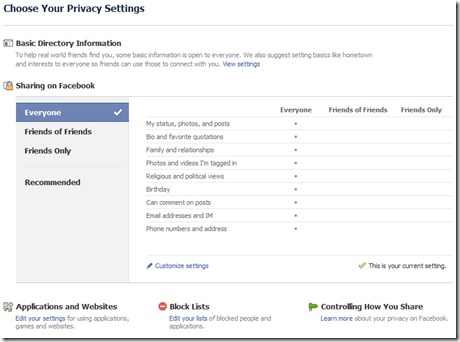
To access this screen, log in to Facebook, then navigate to ACCOUNT (upper right-hand corner) > PRIVACY SETTINGS. Select the Privacy Setting you are comfortable with and click the APPLY THIS SETTING button to save.
2. TO GET MORE DETAILED, CREATE FRIENDS LISTS
Friend Lists are ways of categorizing the people that you connect with on Facebook. You can have up to 100 lists, and up to 1,000 people per list (people can be cross-categorized). These lists are private. Besides allowing you to filter the information you see in your newsfeed, you can also set specific privacy rules based on your Friend Lists.
To create a Friend List:
1. Once you are logged into Facebook, navigate to ACCOUNT>EDIT FRIENDS
2. Click “Create New List”
3. Name your list and select friends to add by clicking on them. You can also type a name in the search to find someone directly. If you check someone on accident, just click again to uncheck them.
4. Click “Create List”
When you edit your Privacy Settings, clicking "Customize" for any setting will open a Custom Privacy pop up dialogue. Under "Make this open to," select "Specific People" form the drop-down menu and enter the name of the Friend List with whom you’d like to share the content (you can enter an individual as well). You can enter Friend Lists or individuals under “Hide this from” as well. If a person is cross-listed, the more restrictive privacy settings will be honored.

3. SAFEGUARD YOUR FACEBOOK ACCOUNT
Did you know that in less than 5 seconds, you can request that Facebook notify you any time your account is accessed on a new computer or mobile device? Navigate to ACCOUNT>ACCOUNT SETTINGS and look for ACCOUNT SECURITY:

Another way to safeguard your account is to be aware of the applications you authorize, Applications need to access your account information (contact info, post to your wall, access your Friend List, etc.) for various reasons, but not all applications are friendly. Any application that seems too good to be true most likely is. To see the applications that you’ve authorized, navigate to ACCOUNT>APPLICATION SETTINGS and select “Authorized” from the drop down menu. Don’t recognize something or use it any more? Click the X.
4. BE SMART ABOUT YOUR PASSWORDS
It’s OK to recycle your passwords, but here are several tips to keep in mind:
-Don’t have the same password for EVERYTHING! At least have a separate password for email accounts, one for social networks, and one (preferably more complex) for financial or sensitive information.
-Do you have a password list? If it’s on your computer, password protect it! Google “[program] password protect document” to find out how to do this. (Note: doesn’t work for Outlook, but Word/Excel/Publisher are all OK.) If your password list is printed, know where it is at all times, and I recommend that you attempt to code your services (IE, just write BANK or $$ instead of WELLS FARGO, etc.)
5. KEEP YOUR EMAIL (AND COMPUTER) SECURE
-If you receive a suspicious email from any source (a social network, financial institution, etc), DO NOT click on the link provided in the email. Instead, go directly to your browser and type in the URL manually. REMEMBER: a bank/social network/etc will NEVER contact you asking for your password or other sensitive data.
-NEVER download/open/install a file of any type from an unknown source.
-If you receive a .zip file from ANY source, even one that you know, verify that it was actually sent from that person before you download/open/install it.
-Anything claiming to come from a Nigerian prince or that you’ve won a prize for doing nothing, etc., is a scam. This goes double for emails claiming that if you forward to x-amount of people you will receive a personal email from Bill Gates/donate money to a charity/ ~*~*~hAvE YoUr WiSHeS gRAntED~*~*~.
Q/A Friday: What are 5 things I must do to create a phenomenal video?
Q: Ok, I’m ready to jump into video creation. I got the Flip Cam (or Vado, or Kodak, or whatever) and I’ve more-or-less talked myself out of stage fright. What are 5 things I can to to make sure my video rocks?
A: First of all, I have stage fright too, and absolutely DISLIKE having to deliver something on video (you probably never would have guessed that, huh?) The key thing is to just get a video done… it might not be perfect the first time, but you gotta start somewhere! So, here are five tips to make your videos more focused, watchable, and streamlined.
1. KNOW WHAT YOU ARE GOING TO SAY
Please don’t be like this guy:

The first step in creating killer video- SCRIPT IT OUT! Without a guide of some kind, you’re likely to just freeze in front of the camera, or worse yet, fill the audio void with endless “Ummmm”’s and “Uhhhhh”’s while you grasp at what you want to say next. It’s also better to write out a bulleted list of key points rather than a word-for-word script. Let the words come freely, but clearly, and even if you mess up, keep control of your face. The world likely won’t know unless you tell us.
It’s bad enough that you have to think about what you’re saying and doing in front of a camera without having to think about handling it, too! Make friends with someone in your office (or a spouse, older child, etc) and agree to man the camera for each other. Even if you’re just doing a desk-chat, this will allow you to relax a little more, plus get rid of the need to trim you moving to/from the camera to start the recording.
3. IF YOU ARE MOVING THE CAMERA, SLOW THAT SUCKER DOWN!
I dare you to watch this:

Did you feel a little sick to your stomach from all the fast movement? Don’t do this to your audience! The best way to keep a camera in control is to have one focus: monitoring your movement (here’s where that movie buddy definitely comes into play!)
A few handling tips (and keep in mind, I went to film school… so you should probably listen to me here)…
-Use a tripod when possible, but make sure it’s not so tight that panning or tilting the camera is jerky.
-If you are handholding the camera, plant both your feet, center your weight, hold the camera with both hands, and if you pan or tilt, twist from the waist for the most level results.
-However slowly you are moving the camera, you could probably stand to move it a little bit slower.
-If you are going to be walking with the camera on, it’s best not to wear shoes (this will also cut down on that *CLOMPCLOMPCLOMP* sound) and keep plenty of spring in your knees and arms.
4. ANGLE IS EVERYTHING
The actual LENS of the camera should be at your eye level, and NO LOWER- I don’t need a tour of your nostrils, thank you! It’s always better to be looking down on someone/thing than up at it, a slightly angled profile almost always beats a true profile or dead-on shot. Also, you should be the focus of the video… so don’t let anything (like your hands) sit closer to the camera than your face. 
Screen-caps have been censored to protect the identity of people who are now busy making phenomenal, well-angled videos :)
*BONUS TIP!!!! Never turn your back to the camera, especially if you are walking. I’m sure you can guess why.


5. DON’T EXPECT IT TO BE PERFECT THE FIRST TIME
I can almost guarantee that any video you see online in which the delivery was perfect was not the first take. Allow yourself a few practice takes to get a feel for the words, the gestures, etc, but keep the camera rolling in case you do nail it. Let yourself relax, have a good time, and remember: at the end of the day, the most important thing is that you did it.
Q/A Friday: How do I come up with a realistic (and successful!) social media plan?
Q: I feel like I need to make a bigger dent in the social media world, but I have no idea where to start. Is there an easy way to do this?
A: YES! Managing your social media presence is really as easy as one-two-three….and four: Topics, Resources, Schedule, Spontaneity.
- Decide on your topics Make a list of the things you want to talk about. This can be anything you want, as many as you want, and remember that your list can change as you progress. EXAMPLE: My topics are social media news, San Diego events/culture, baking/cooking, and freebies/discounts.
- Identify your resources
Determine (and bookmark!) sources who are talking about what YOU want to talk about. This can be done by a simple Google search of your topics list. You should shoot for at least two resources per topic, but there’s no real wrong number.
EXAMPLE: My resources are Mashable, Social Media Examiner, Sign on San Diego, NBC San Diego, The Pioneer Woman, Bakerella, Groupon San Diego, and Slick Deals.
- Schedule the week ahead Create a free Hootsuite account and link your Facebook (profile, page, or both), Twitter, LinkedIn accounts, etc. Schedule time for yourself to take a quick scroll through your resources (once a week for an hour should suffice, but you can adjust this to fit your needs). As you find something that you want to share, schedule it right then and there. BONUS! If you use the Hootlet fuction in Hootsuite, it will automatically shrink your link AND provide you with click analytics! EXAMPLE: Monday might be my Social Media day, so I would browse through my social media resources and schedule something for Monday: BANG! Facebook passes 500 million users.http://bit.ly/chywhb If I want Friday to be my “what’s up this weekend” day, I might look through my local events/culture resources and schedule something for Friday: Didn't score a ticket to @comic_con this year? Good news- there are plenty off-site events, like Zombie Walk! #sdcc http://bit.ly/b5fPCL Check out just how easy it is to use the Hootlet:
- Jump in spontaneously. At this point, you’ll be regularly posting like a pro, but remember that social media is also a conversation. Log on at least once a day and take a quick scroll down your feed to see who’s saying what. Leave a few comments, check in with at least one person you haven’t connected with in a while, manage your requests, etc. Another great way to be spontaneous is to use your smart phone smartly. Find a great restaurant or come across a street fair or have something else to say? Get your phone out and take 30 seconds to post it to Twitter or Facebook – even better, take a picture! The easiest way to do either is using an app, but you can also use your phone’s internet service or send a text message to either service. EXAMPLE: Avoid I15 north like the plague! I left Eastlake at 4... Single digits from the 8. Just passing Miramar now. Save yourself if you can! (Posted via mobile web)
Subscribe to:
Comments (Atom)
